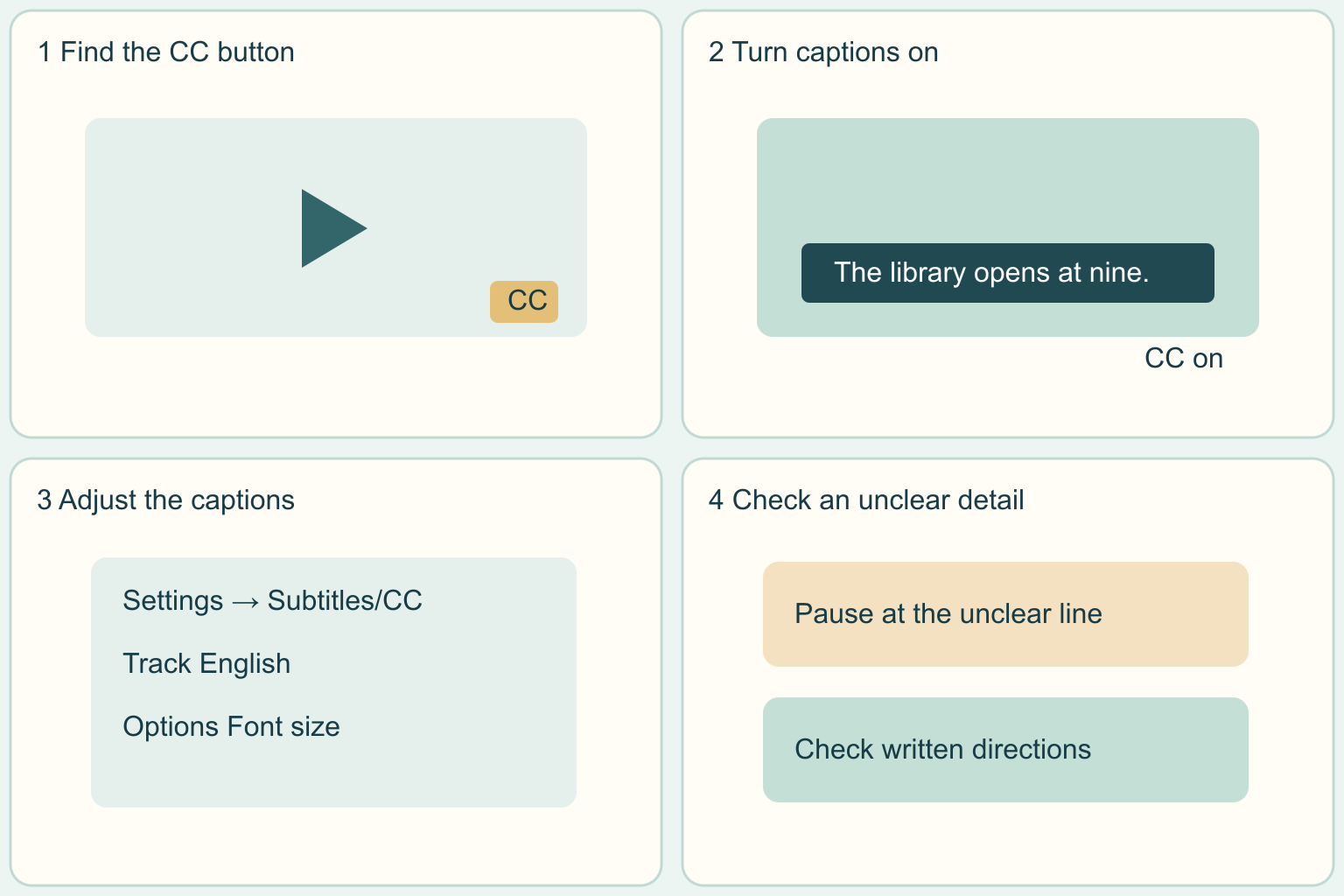
Find the CC button, check what appears and make the words easier to read.
Why it matters: Captions can help you follow a lesson or watch in a quiet place.
Written guidance reviewed: 2026-11-12 · Sources and equipment assumptions are below.
Take this guide to another device
Steps, notes, supplies, setup choices, results and check dates save on this browser as you work. Plus can also keep an account copy. Account copies update only when you choose Save; loading one replaces the browser draft shown here.
Review all saved work. Saved account check dates appear in My Day. Clear the date and save again to finish a follow-up. Email settings stay separate; existing opted-in agenda or deadline emails can include these dated actions.
Understand the job before starting
Captions can help you follow a lesson or watch in a quiet place.
A common mistake to avoid
If CC is on and you see no words, try playing a section with speech. If the language is missing or the captions remain unclear, look for a written version or ask the video provider.
Words used in this guide
Transcript
An official record of courses and grades from a school. Read the example
Use what you already have. Check each item when it is ready.
Before you begin
Practice with a public video. Keep private class or work links out of shared worksheets. Verify important names, numbers and instructions with the person or organization that provided the video.
0 of 4 steps checked0%
Guide progress and notes save on this browser; choose Save account copy above to carry them to another device with Plus. Downloads contain the complete blank checklist; print to include your current checks and notes.
Do it with me
Your step position saves on this browser. Use the picture when available, then check the written result.
STEP 1 OF 4
Find the caption button
Start here: Open a YouTube video on a computer and show the controls.
Illustration: Find the caption button. Read the steps for your exact task.
Read-aloud is available in supported browsers; the written steps always remain available.
Move your pointer over the video to reveal the controls.
Look for CC near the bottom right.
CC stands for closed captions.
Captions are words on the screen that show speech and can describe sounds.
If you cannot find the button, try another video with captions for this practice.
Before moving to the next step
Check this specific result: I found the CC button on a video.
If that result is not true yet, leave the box unchecked. Write what is missing in your notes; use the official instructions below when the equipment or situation differs.
STEP 1 OF 4
Find the caption button
Start here: Open a YouTube video on a computer and show the controls.
Illustration: Find the caption button. Read the steps for your exact task.
Move your pointer over the video to reveal the controls.
Look for CC near the bottom right.
CC stands for closed captions.
Captions are words on the screen that show speech and can describe sounds.
If you cannot find the button, try another video with captions for this practice.
Before moving to the next step
Check this specific result: I found the CC button on a video.
If that result is not true yet, leave the box unchecked. Write what is missing in your notes; use the official instructions below when the equipment or situation differs.
STEP 2 OF 4
Turn captions on
Start here: Select CC and watch a short stretch of speech.
Illustration: Turn captions on. Read the steps for your exact task.
Click CC once.
Play a part where someone is speaking and look for words on the video.
If you are reading while the video plays, pause whenever you need more time.
Click CC again when you want to turn captions off.
For this practice, leave them on until you finish checking the settings.
Before moving to the next step
Check this specific result: I saw words appear during a spoken part.
If that result is not true yet, leave the box unchecked. Write what is missing in your notes; use the official instructions below when the equipment or situation differs.
STEP 3 OF 4
Choose a language and readable size
Start here: Open Settings and look for Subtitles/CC.
Illustration: Choose a language and readable size. Read the steps for your exact task.
Select the gear in the player, then choose Subtitles/CC.
Pick a language from the tracks offered for that video.
A track is one set of captions.
If the text is hard to read, look for Options in the same menu and adjust the font size.
Test the result while the video plays.
Before moving to the next step
Check this specific result: I chose an available language and checked that I can read it.
If that result is not true yet, leave the box unchecked. Write what is missing in your notes; use the official instructions below when the equipment or situation differs.
STEP 4 OF 4
Check a confusing line
Start here: Pause and look for a reliable written version.
Illustration: Check a confusing line. Read the steps for your exact task.
If a name, number or instruction looks wrong, pause.
Captions made automatically can make mistakes.
For a class or work video, look for written instructions from the person who provided it.
A transcript is a written version of what was said.
Ask for a captioned copy or a transcript if you need one and cannot find it.
Before moving to the next step
Check this specific result: I know what to do if captions are missing or unclear.
If that result is not true yet, leave the box unchecked. Write what is missing in your notes; use the official instructions below when the equipment or situation differs.
Pictures for this guide
Picture 1 of 4 · Find the caption button
A simplified video player highlights CC at bottom right.
For: Find the caption button
Illustrations show examples of the actions above. Follow your equipment’s instructions.
Notes about these pictures
Move your pointer over the video to reveal the controls. Look for CC near the bottom right. CC stands for closed captions. Captions are words on the screen that show speech and can describe sounds. If you cannot find the button, try another video with captions for this practice.
Practice with a public video. Keep private class or work links out of shared worksheets. Verify important names, numbers and instructions with the person or organization that provided the video.
Was this step clear?
Flag “Find the caption button” for review. We save the guide and step identifiers with your account to limit duplicates, not your private notes.
A specific companion has not been selected for this new guide yet. You can search for related demonstrations; search results have not been reviewed by Life’s Checklists.
These YouTube videos belong to their respective creators. Life’s Checklists does not own them and is not affiliated with the creators. Links open on YouTube, where the videos are available independently of our membership.
How to use the video with this guide
Read “Before you begin” first. Watch the relevant part, pause, then return to the written step and its completion check. Use captions and playback speed if they help. A demonstration may cover only part of the task or show different equipment.
Your model’s instructions and current official guidance take priority. For urgent problems, follow the stop instructions without waiting to watch a video.
Finish the job and know what to do next.
For this guide, the final result is: I know what to do if captions are missing or unclear.
A concrete way to approach this task
In this fictional example, Taylor opens a public library orientation video. Taylor turns on CC, increases the font size and checks a room number against the library’s written directions.
What if I cannot complete a step?
If CC is on and you see no words, try playing a section with speech. If the language is missing or the captions remain unclear, look for a written version or ask the video provider.
Identify the exact step: “Find the caption button.” Record what you tried, what happened, and which item or model you used. Ask for help with that specific problem rather than repeating an unsafe or unsuccessful action.
Practice with a public video. Keep private class or work links out of shared worksheets. Verify important names, numbers and instructions with the person or organization that provided the video.
Connect this skill to everyday life
Choose one important account and verify its recovery options through the genuine service. Organize where your recovery information is stored securely.
A familiar logo or display name does not verify a sender. Account recovery codes and normal passwords have different purposes.